iOS Shadowrocket Guide
Shadowrocket is the standard proxy client on the iOS platform. It is powerful and rule-based, supporting multiple protocols.
Note
Shadowrocket is a paid app on the App Store. You will need a non-mainland Apple ID to purchase and download it.
You can get it for free on the website where you purchased the subscription.
Step 1: Download Shadowrocket
- Open the App Store on your iPhone.
- Log in to your global Apple ID. (You can get it for free on the purchased website.)
- Search for Shadowrocket and download the app.
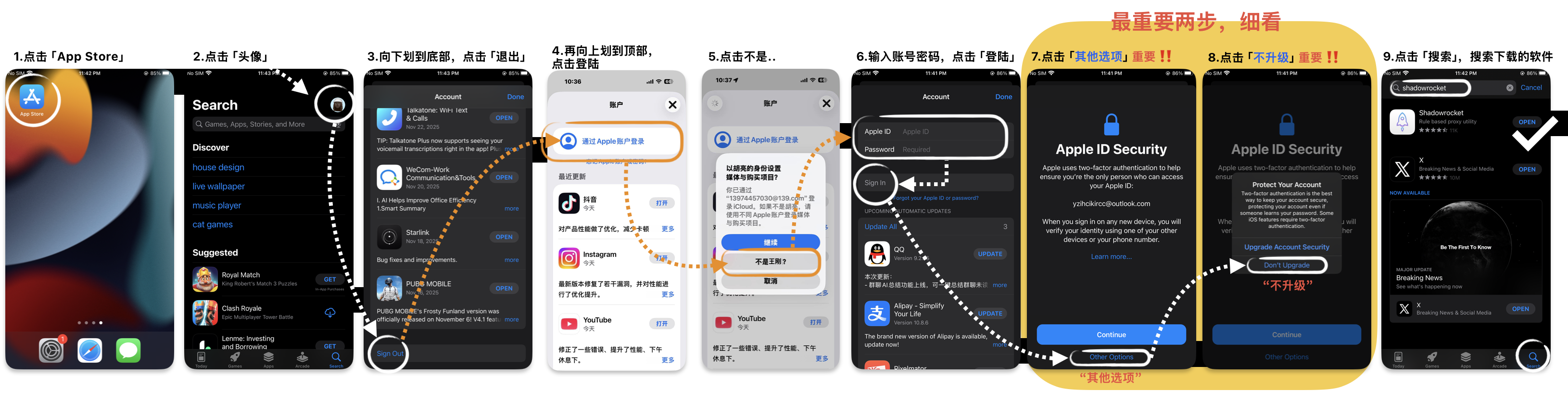 Note: Please log out of your own account first, and then log in to the free account. Log out after downloading.
Step 2: Add Subscription
Method 1: Scan QR Code to Import
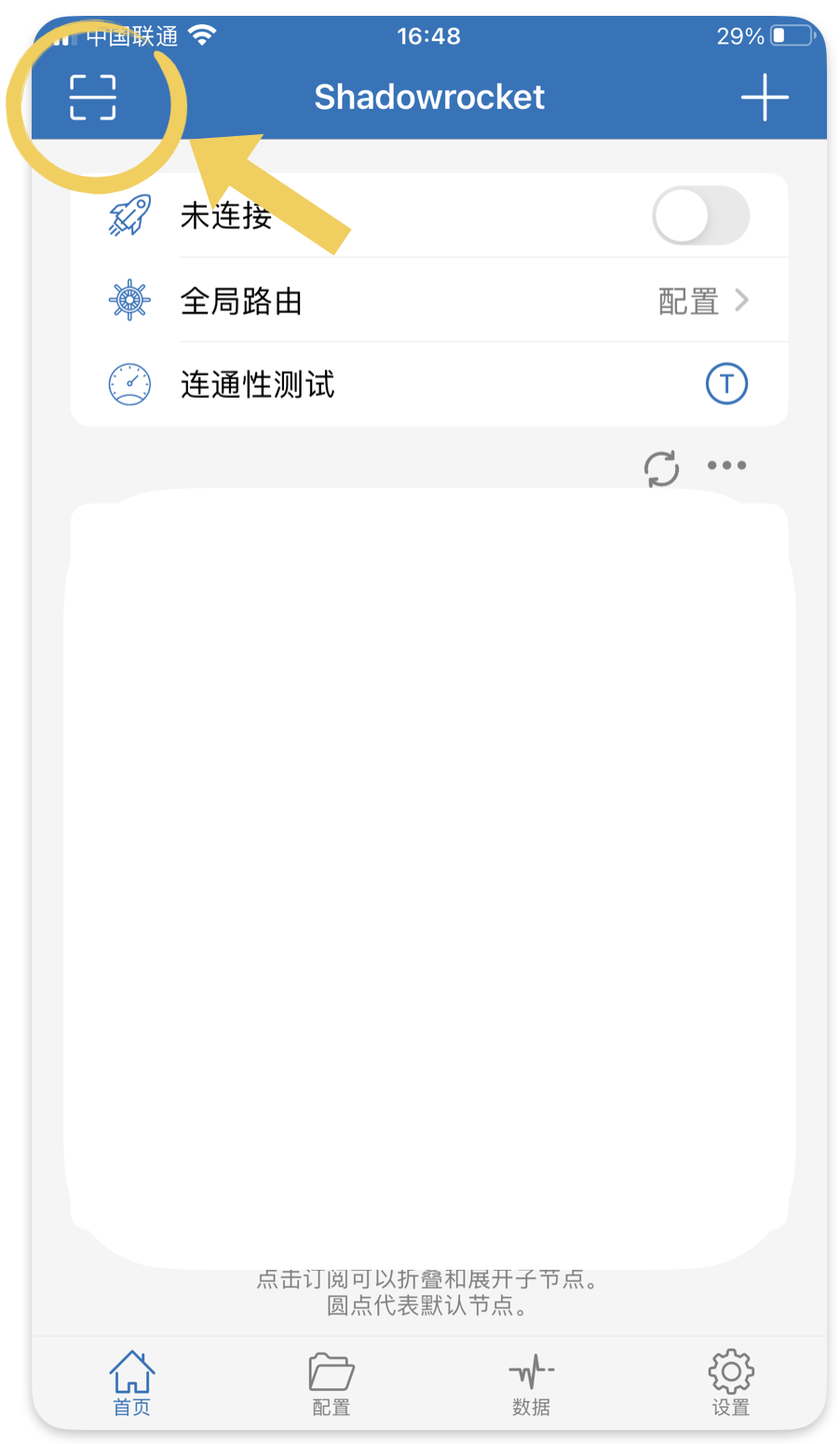
Method 2: Copy Subscription Link
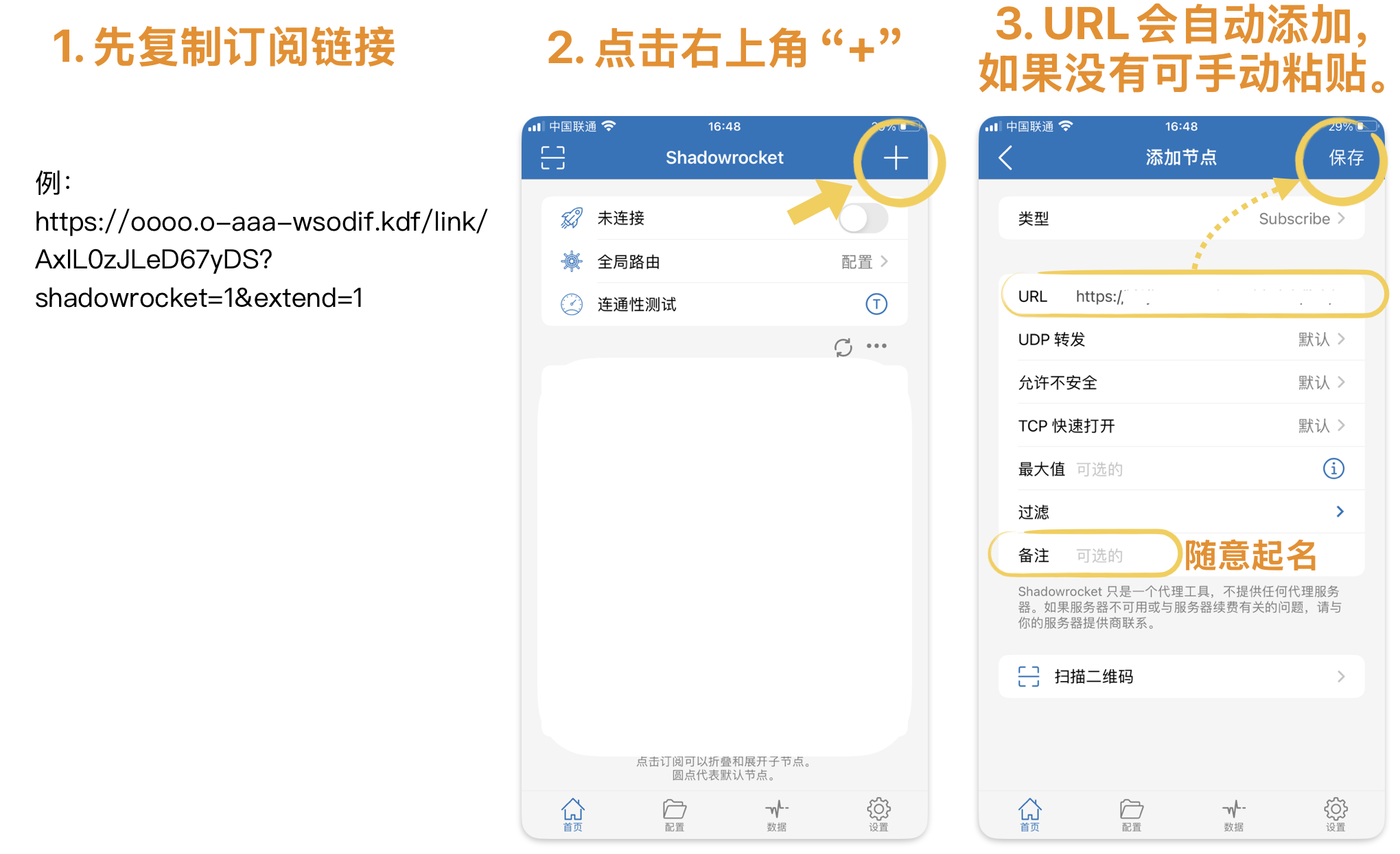
- First, copy the subscription link.
- Open Shadowrocket.
- Click the + icon in the top right corner.
- Set the Type to Subscribe.
- Paste your subscription link into the URL field.
- Click Done in the top right corner.
- The application will automatically obtain the server list.
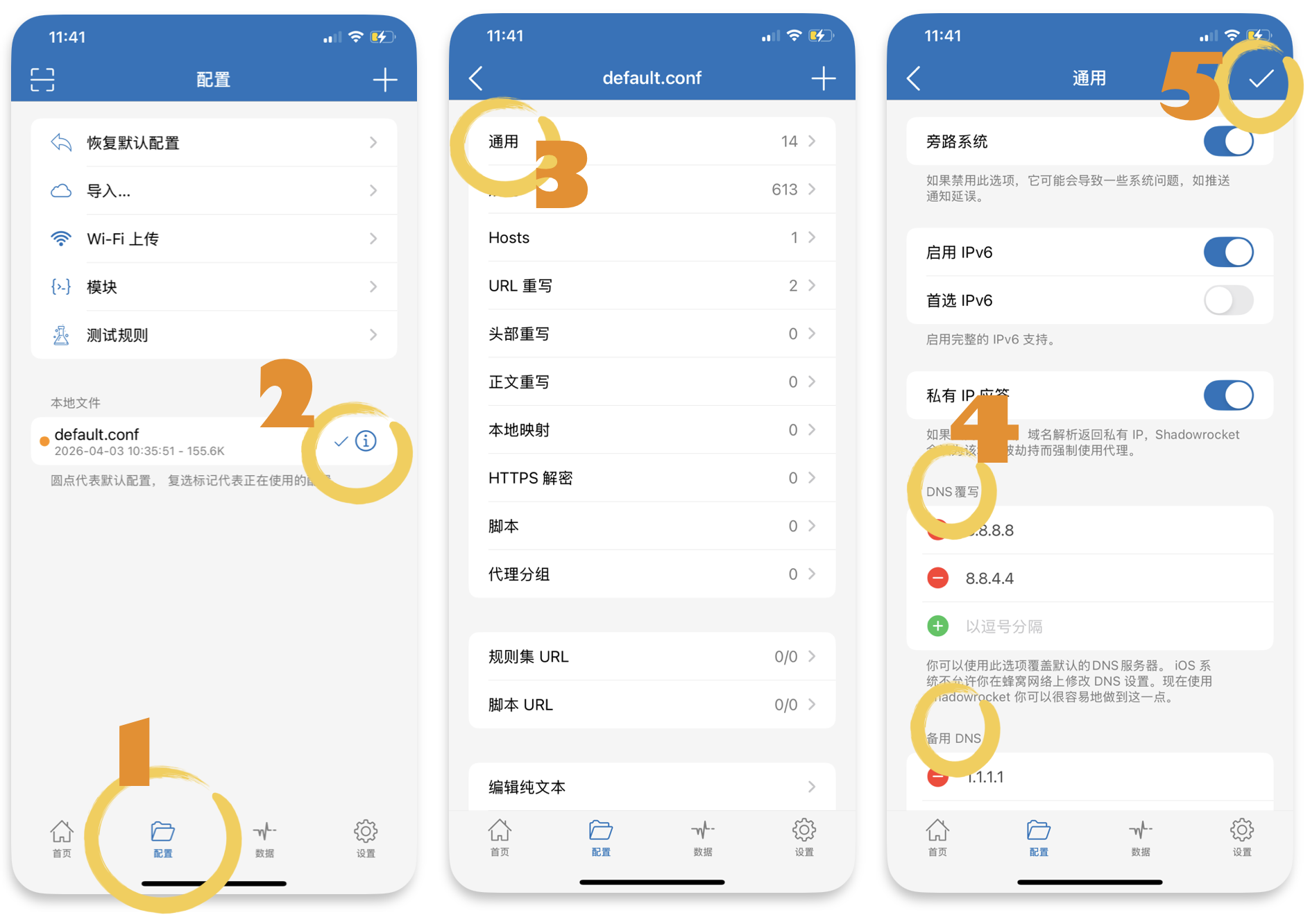
Step 3: Set DNS (broader support, more stable)
Configuration -> ⓘ -> General -> DNS Overrides (Set to: 8.8.8.8, 8.8.4.4 and alternative DNS 1.1.1.1)
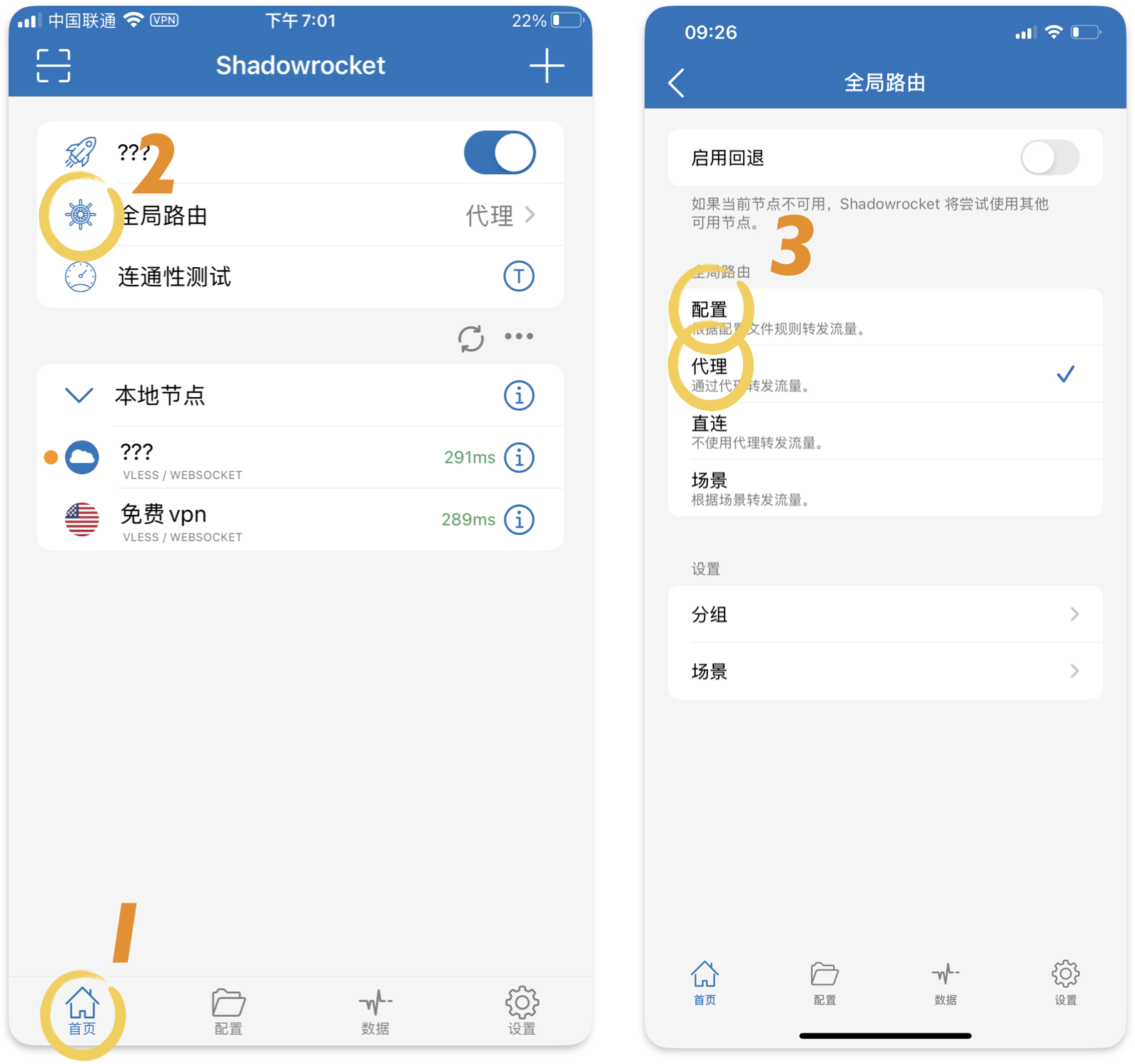
Step 4: Choose Mode
- Find Global Routing on the main interface.
- Select Config (rule-based) to achieve the best balance between speed and functionality. (If some websites cannot be opened, you can select "Proxy".)
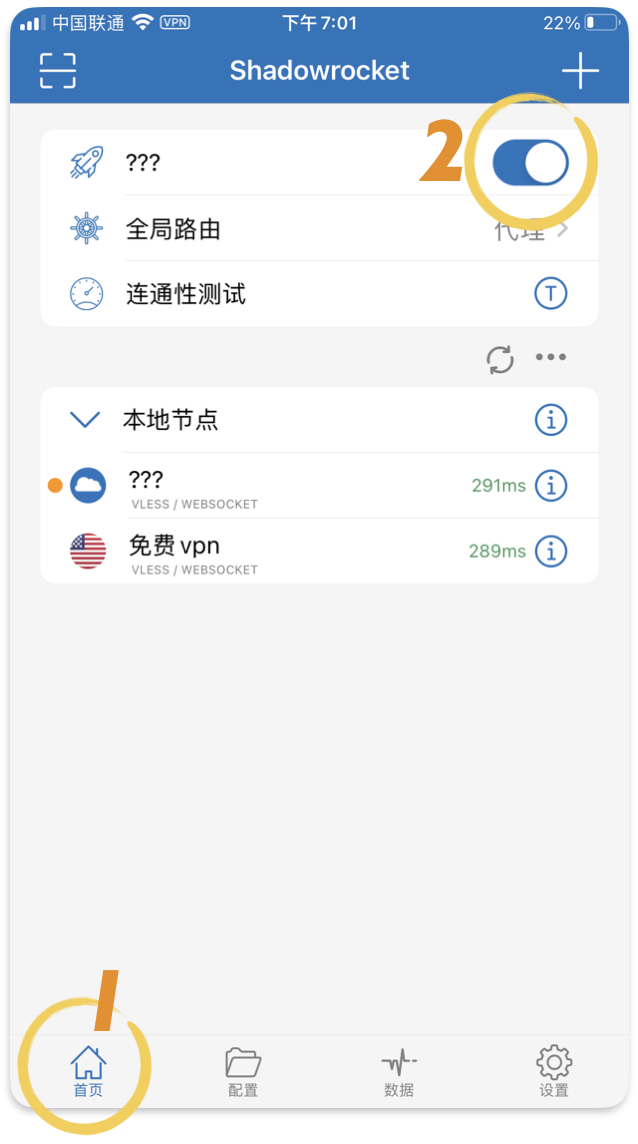
Step 5: Connect
- Toggle the switch at the top to enable the proxy.
- If this is your first time using it, iOS will ask for permission to add a VPN configuration. Click Allow and enter your passcode.
- After connecting successfully, a small "VPN" icon will appear in the status bar.
Speed Test
Latency Test
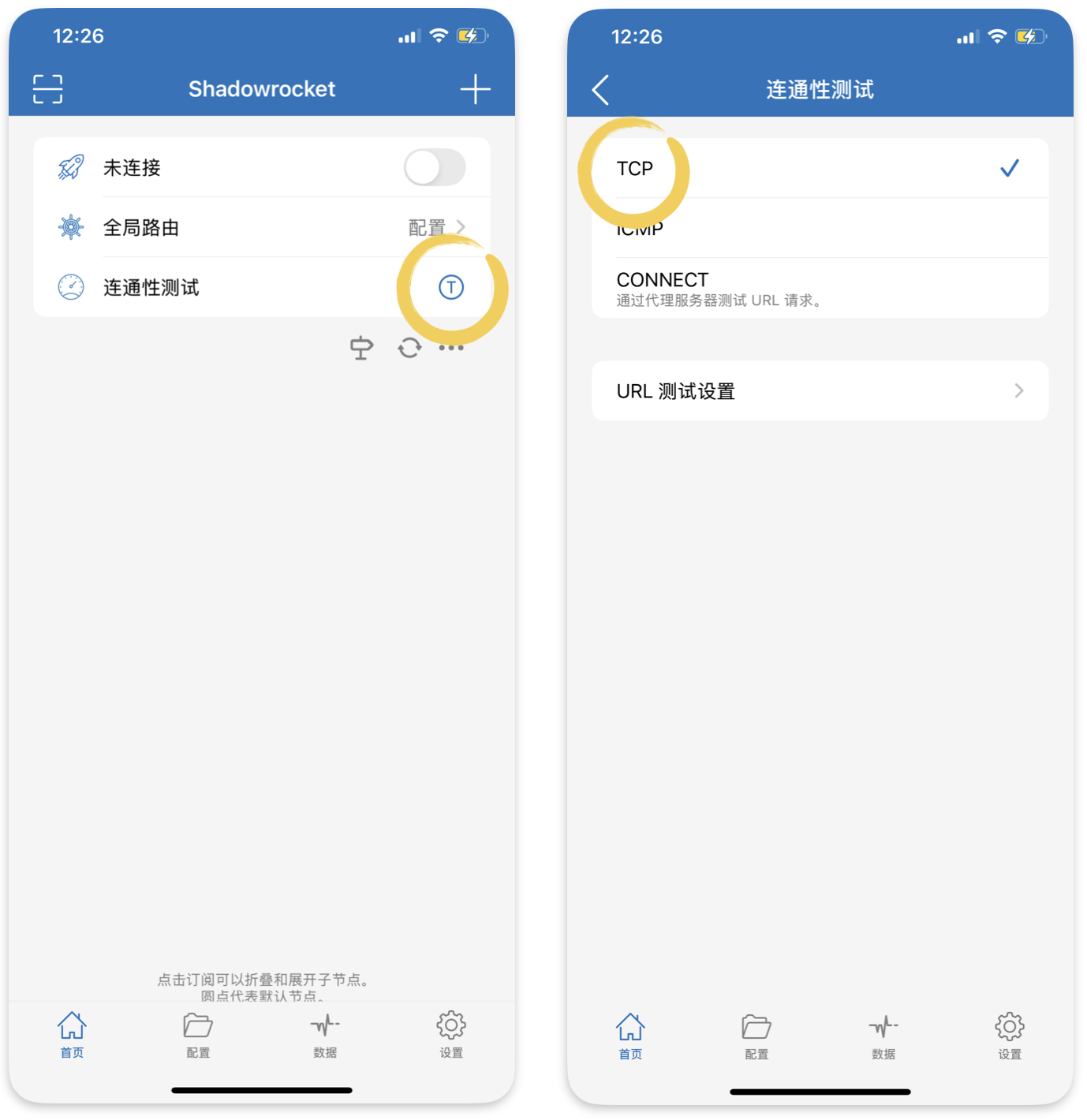
Click "Latency Test" to check which server currently has the lowest latency. Turn off the VPN switch first when using TCP test.
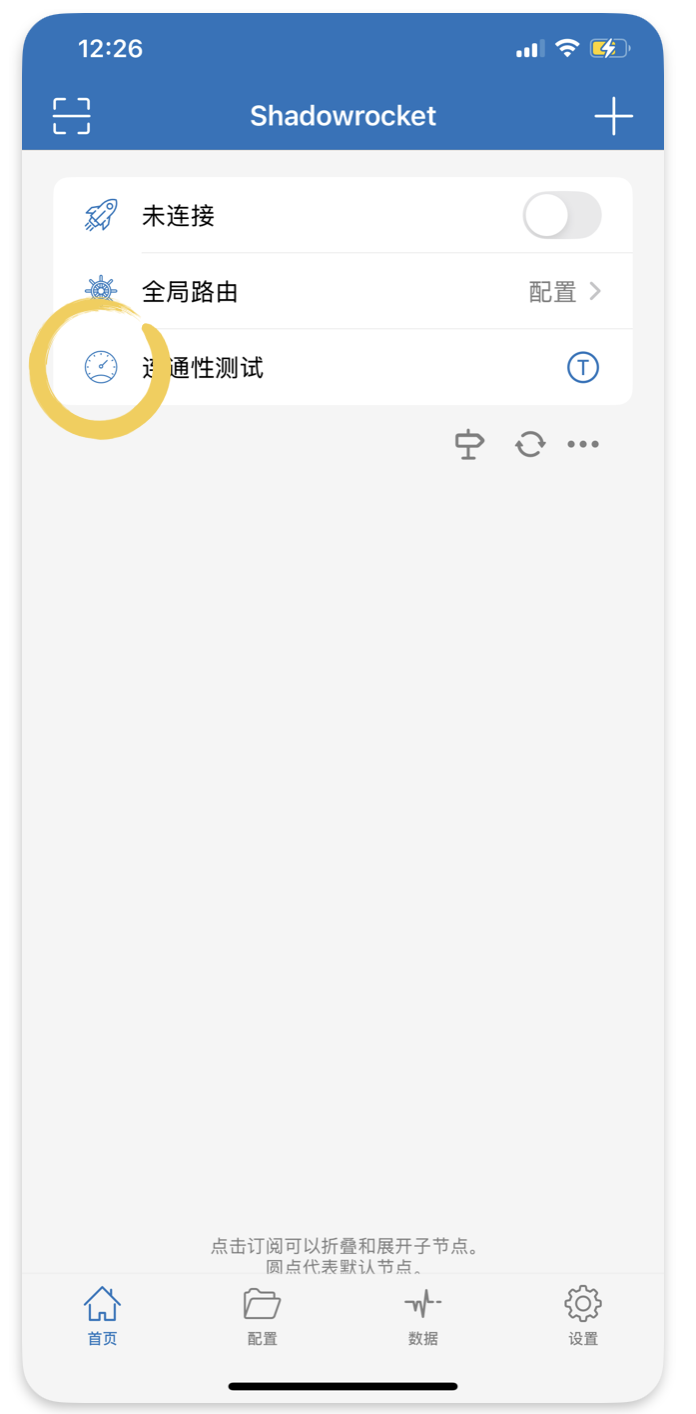
Change test method: Choose TCP
- TCP focuses more on proxy stability and connection quality.
- ICMP is highly inaccurate.
- HTTPS tests the ability and speed of the proxy server to process HTTP traffic.
FAQ
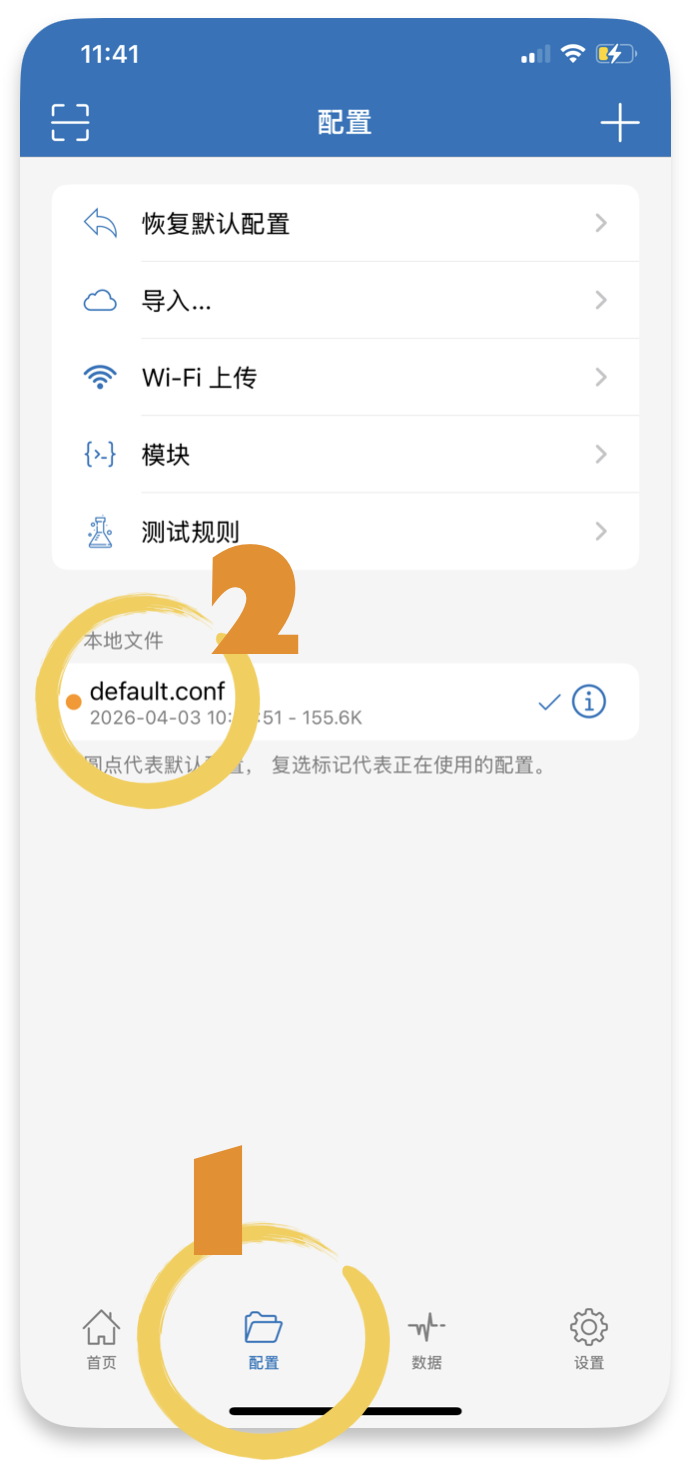
1. YouTube cannot be played or loaded during use.
- Reason: Because you switch between products from different providers or different versions, their configuration files are incompatible.
- Solution: Change the configuration file, or use the default configuration, or modify the configuration file.