Windows V2rayN Guide

This guide will help you configure v2rayN on Windows, the most popular V2ray client to ensure a secure and fast connection.
Recommendation
We recommend using v2rayN-Core for the best support of modern protocols like Trojan, Shadowsocks, and VLESS.
Step 1: Download and Extract
Windows 7 Download (Version 6.35):
Download from Pcloud|Source Download
Windows 10 64-bit Download (Version 7.16.4):
Download from Jottacloud|Source Download
32-bit Download (Version 6.35):
v2ray-core 32-bit (v5.47.0) v2ray-core v2rayN 32-bit UI (v6.35) v2rayN 32-bit
64-bit system steps:
- Open this tutorial in your browser, click the corresponding download link.
- Extract the ZIP file to a folder.
- Run
v2rayN.exe. If prompted to download [Microsoft .NET 8.0 Desktop Runtime], download and install it. If Windows Defender warns you, click "More Info" and choose "Run anyway".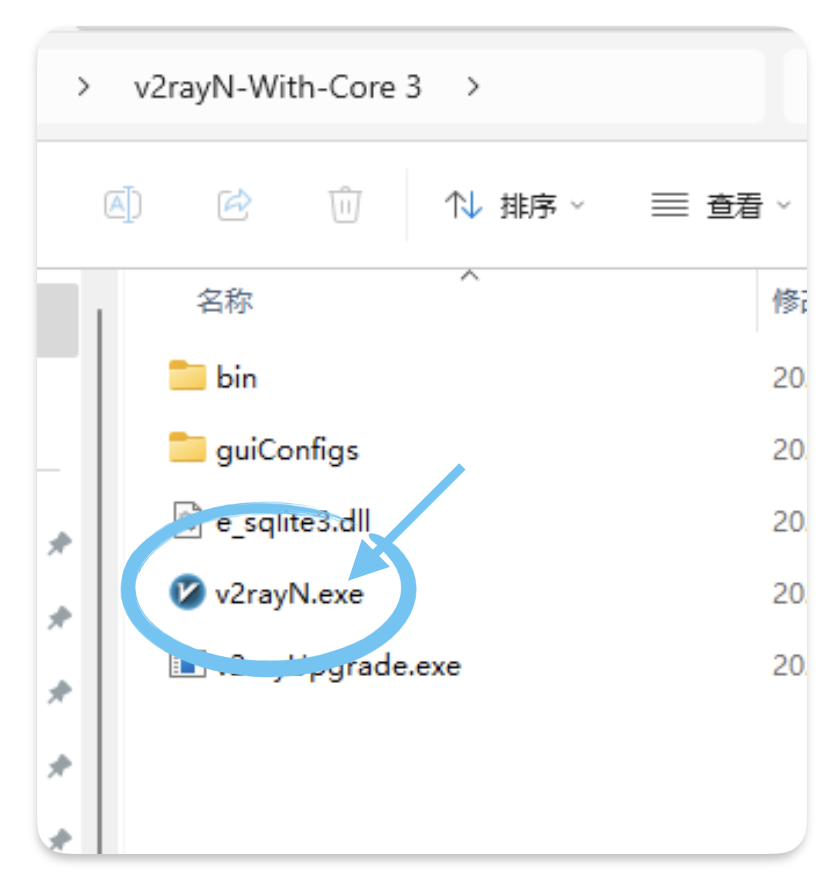
32-bit system steps:
- Download V2Ray core (32-bit version 5.47.0).
- Extract the files (to a fixed location like: D:\v2ray-core).
- Download v2rayN 32-bit (version 6.35).
- Extract it.
- Run
v2rayN.exe. - Configure the core path:
- Settings -> V2Ray Core Path.
- Select the extracted core directory: D:\v2ray-core\v2ray.exe
- Save settings.
- Test run: In v2rayN, click Start V2Ray. If there are no errors, core configuration is successful.
Step 2: Add Subscription
Method 1: Add Manually
- Copy the subscription link provided.
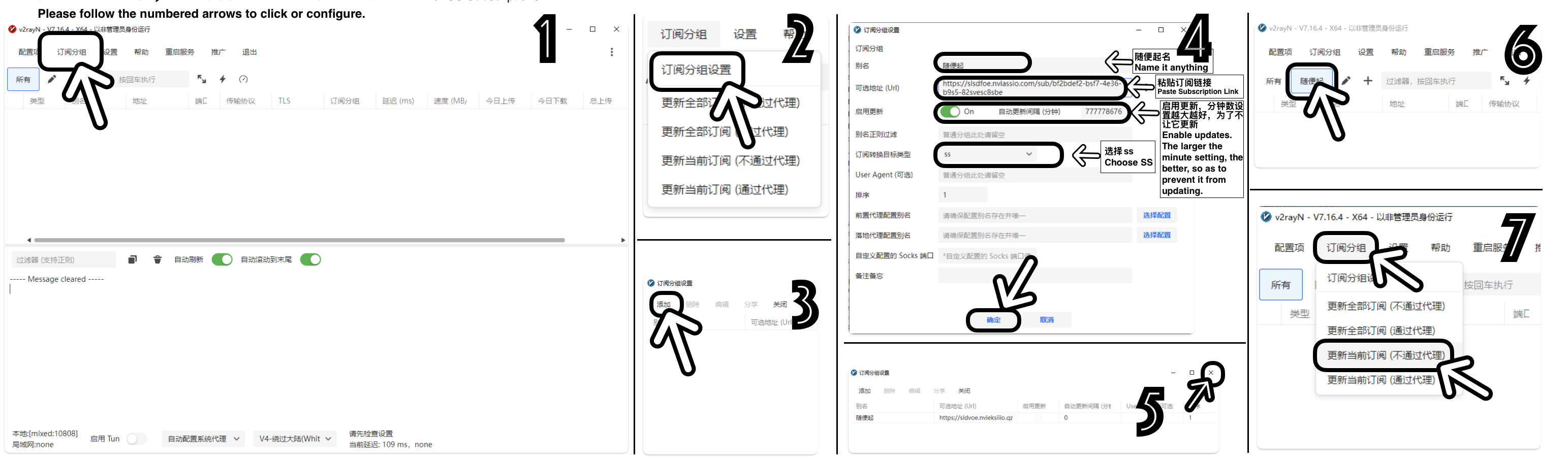
- In v2rayN, click Subscription Groups -> Subscription Group Settings. (Images 1, 2)
- Click Add, enter a name, and paste the link in
url. Enable updates (set automatic update as large as possible, e.g., 999999999999999999), set Type to SS, click Confirm. (Images 3, 4) - Return to main UI (Image 5)
- Click Subscription Groups -> Update current subscription. Your servers will display. If not, click update again. (Images 6, 7)
Method 2: Copy and Paste
- Open the link in a browser.
- Copy the data.
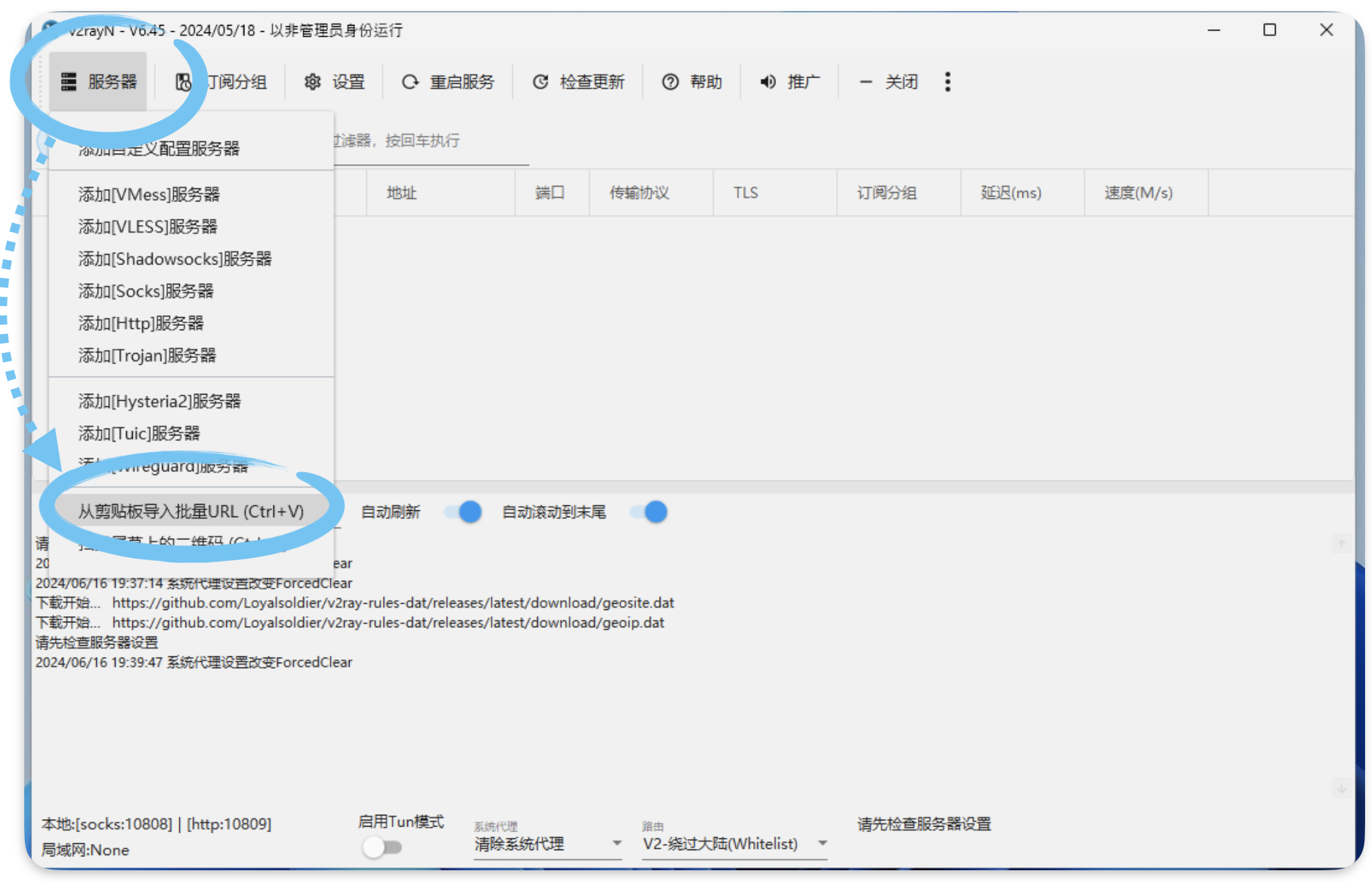
- In v2rayN, click Servers, choose Import from clipboard or press Ctrl+V.
Step 3: Enable Proxy
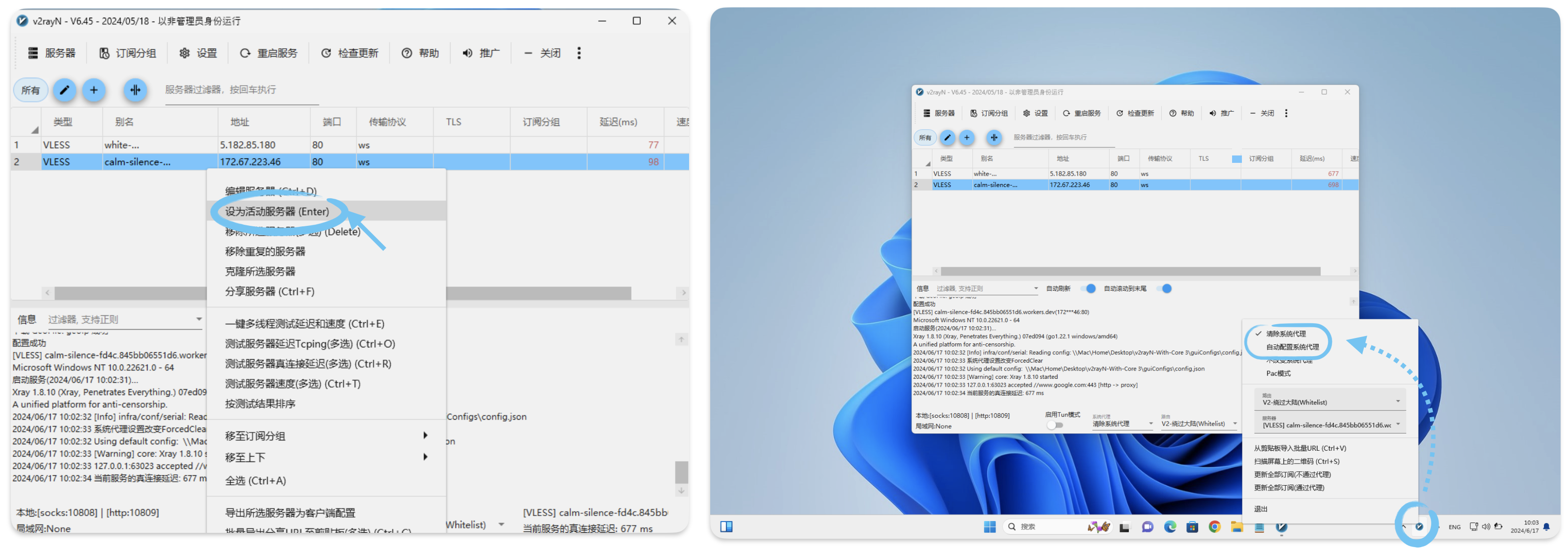
- Select a server, and press Enter or right click Set as active server.
- To enable system proxy, find v2rayN icon in system tray.
- Right click the icon, set System Proxy to Set System Proxy. ("Clear System Proxy" turns it off).
- Set Routing to Bypass Mainland China or Global.
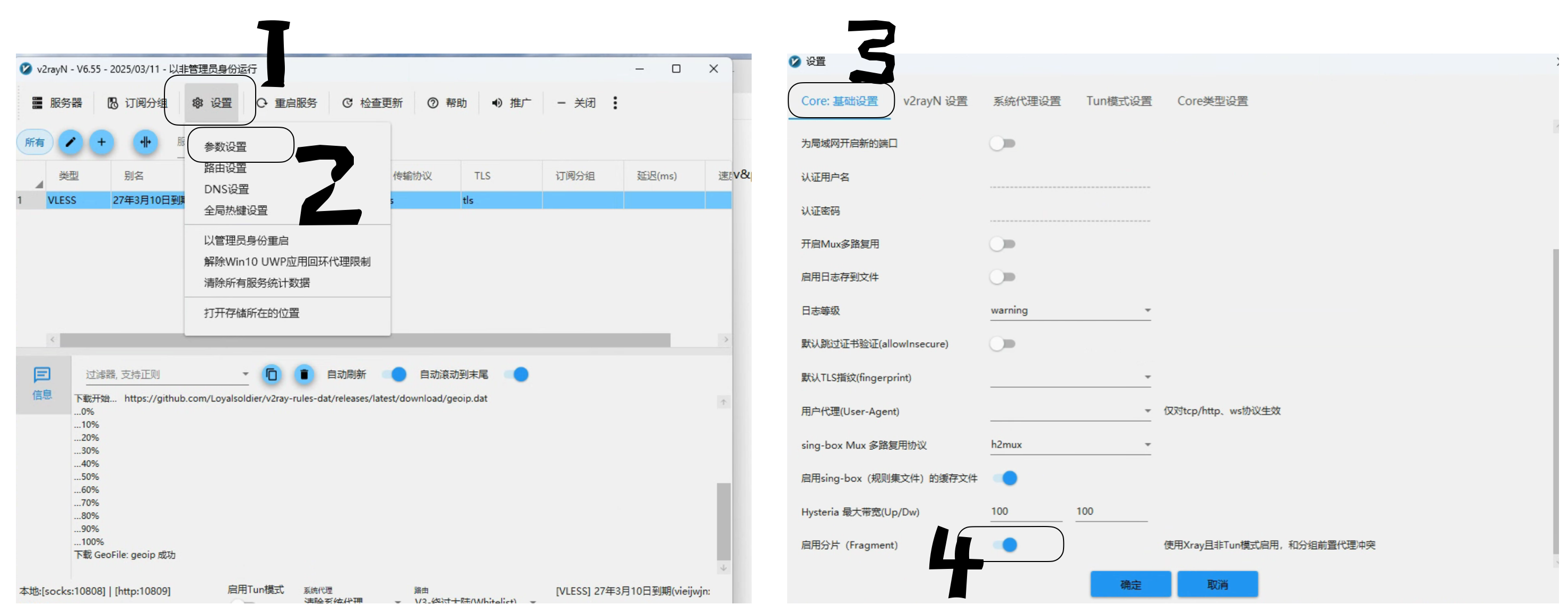
Other: Turn on Fragment
Settings -> Parameter Settings -> Core Settings -> Enable Fragment -> Confirm
Note
Set "System Proxy" back to "Clear System Proxy" before closing the app.